 mehul.pattel
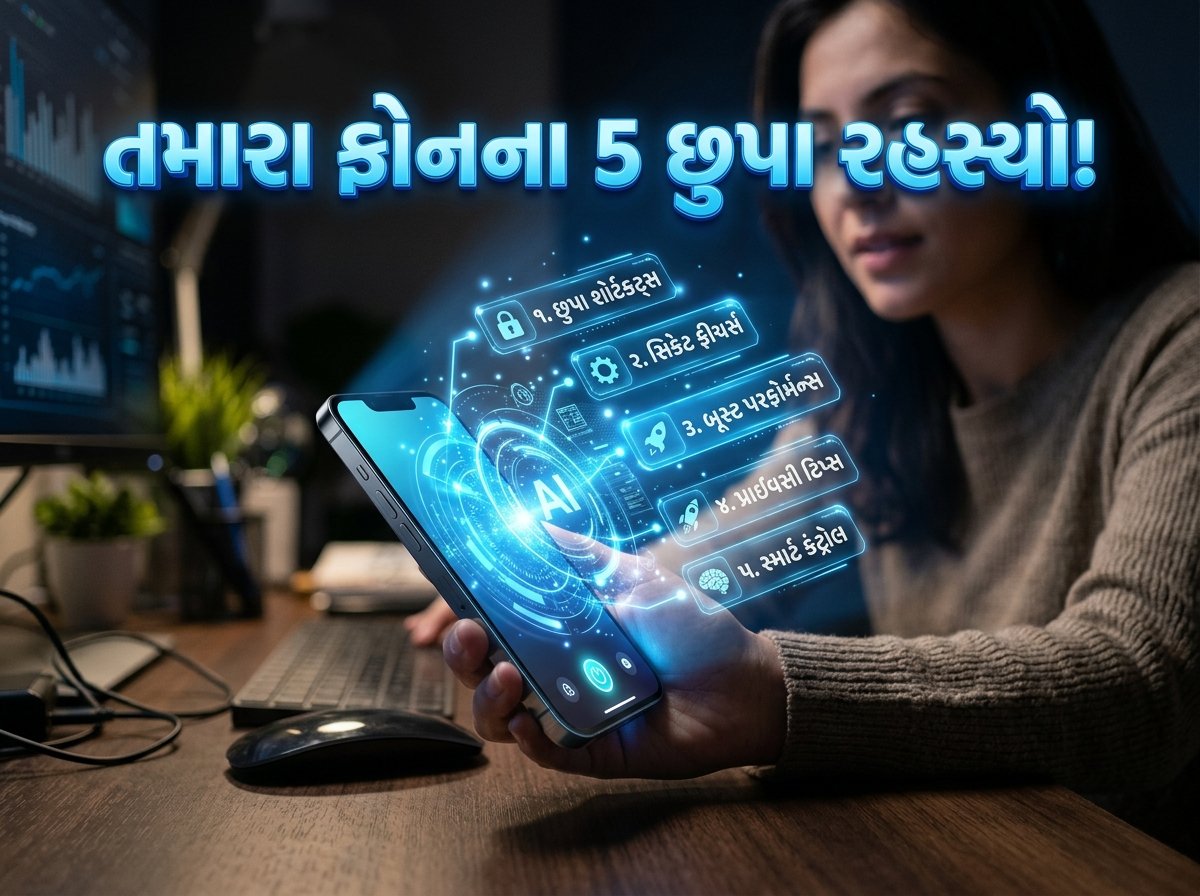
Top 5 Hidden Smartphone Hacks & AI Features You MUST Know in 2026!
⚡ Quick Summary:
- AI Productivity: Modern smartphones now have built-in AI that can summarize notifications, redact private info from screenshots, and offer real-time on-device translation without the internet.
- Hidden Gestures: Learn how to use the “Back Tap” feature on both iOS and Android to launch your favorite apps instantly without unlocking your screen.
- Recover Lost Data: Swiped away an important message? Turn on “Notification History” to retrieve lost alerts instantly.
- Performance Boost: Make your phone 2x faster by unlocking the hidden “Developer Options” menu.
- Mastering 2026 Tech: Most people only use 20% of their smartphone’s capabilities. This guide will help you unlock the true power of your device.
- Top 5 Hidden Smartphone Hacks & AI Features You MUST Know in 2026!
We carry our smartphones everywhere, yet most of us use them merely for scrolling social media, making calls, or sending messages. In 2026, smartphone technology has evolved beyond imagination. With the integration of powerful Neural Processing Units (NPUs) and on-device Artificial Intelligence, your phone is now a supercomputer that can proactively manage your daily life.
However, tech giants like Apple and Google hide some of the most powerful features deep within the settings menu. In this masterclass guide, we will uncover the Top 5 Hidden Smartphone Hacks and AI Features that are going viral in 2026. Whether you are an Android fanatic or an iPhone loyalist, these tips will supercharge your productivity and transform the way you use your device.
1. The “Back Tap” Secret Shortcut (iOS & Android)
Did you know that the back of your smartphone is actually a hidden, customizable button? You don’t need a physical button to take screenshots or turn on the flashlight anymore. By simply double-tapping or triple-tapping the back panel of your device, you can trigger almost any action.
How to Enable Back Tap on iPhone:
- Go to Settings > Accessibility.
- Tap on Touch.
- Scroll down to the bottom and select Back Tap.
- Choose either “Double Tap” or “Triple Tap” and assign an action (e.g., Screenshot, Flashlight, or launching ChatGPT).
How to Enable Back Tap on Android:
- Open Settings > System > Gestures.
- Look for Quick Tap or Double Tap on the Back (this may vary slightly depending on your manufacturer like Samsung or Pixel).
- Toggle it on and assign your preferred action.
2. AI Notification Summarization & Cooldown
Are you tired of waking up to 500 useless WhatsApp messages or Instagram notifications? In 2026, AI can sort this mess for you automatically.
Modern operating systems now feature Smart Notification Summarization. When enabled, the AI reads through your cluttered notification tray and provides a clean, two-line summary of what you missed. Furthermore, a feature called “Notification Cooldown” gradually lowers the volume of consecutive notifications from the same app, so your phone doesn’t constantly vibrate when someone sends you 10 rapid messages.
- Pro-Tip: Check your “Focus Mode” or “Digital Wellbeing” settings to enable AI-assisted notification sorting. It ensures that only urgent calls from family or work bypass your filters while you are busy.
3. Instant Privacy Redaction in Screenshots
We all share screenshots, but sometimes they contain sensitive information like phone numbers, bank account details, or personal emails. Manually scribbling over this data is annoying and often ineffective.
In 2026, the native screenshot tools on both iOS and Android come equipped with AI Privacy Redaction. When you take a screenshot, the on-device AI automatically detects sensitive numerical or text data.
* Simply tap the newly captured screenshot.
* Look for the “Redact” or “Blur” icon powered by AI.
* With a single tap, all sensitive information is instantly blurred out perfectly, making it 100% safe to share on social media.
4. Recover Lost Alerts with “Notification History”
We have all been there—you accidentally swipe away a notification without reading it, and then you spend the next 10 minutes checking every single app to find out what it was. If you are an Android user, this problem was solved years ago, but it remains one of the best-kept secrets.
How to Turn on Notification History (Android):
- Open your phone’s Settings.
- Navigate to Notifications or Apps & Notifications.
- Tap on Notification History and toggle the switch to ON.
- The next time you accidentally clear a notification, just come back to this menu to see a complete log of everything your phone received in the last 24 hours.
5. Make Your Phone 2x Faster with Developer Options
If you feel like your phone is starting to lag or the animations are too slow, you don’t need to buy a new device. You can force your phone to run faster by tweaking hidden developer settings. By reducing the animation scale, your phone will open and close apps almost instantaneously.
Step-by-Step Guide:
- Go to Settings > About Phone.
- Find the Build Number and tap on it exactly 7 times. You will see a prompt saying, “You are now a developer!”
- Go back to the main Settings menu and open Developer Options.
- Scroll down to the “Drawing” section.
- Change Window animation scale, Transition animation scale, and Animator duration scale from 1x to 0.5x.
- Enjoy a significantly snappier and faster smartphone experience!
Frequently Asked Questions (FAQs)
Q1: Do these AI features work without the internet?
Yes! A massive trend in 2026 is On-Device AI. Thanks to powerful Neural Processing Units (NPUs) built into modern chips, tasks like text extraction, screenshot redaction, and live translation happen directly on your phone, keeping your data private and working even offline.
Q2: Does changing the animation scale in Developer Options damage my battery?
No, reducing the animation scale to 0.5x simply makes the visual transitions faster. It has negligible impact on your battery life and will actually make your phone feel brand new.
Q3: Is the Back Tap feature available on older phones?
Back Tap requires specific accelerometer hardware. Generally, iPhones from iPhone 8 onwards and most Android flagships released after 2021 support this feature.
Conclusion:
Your smartphone is a powerful tool, and by leveraging these hidden hacks and AI capabilities, you can save time, boost your productivity, and protect your privacy. Try out the “Back Tap” feature or the “Notification History” today and see the difference for yourself.
Which of these 2026 smartphone hacks is your favorite? Let us know in the comments below! Stay tuned to GujjuFanClub for more amazing Tech Tips and AI tricks! 🚀📱